← maosuarez.com caligrama v0.3.2
Documentación · caligrama

Escribe un texto con la forma de una imagen

caligrama recibe una imagen y un texto, detecta la silueta del objeto y escribe el texto dentro, letra por letra. Devuelve un str normal que puedes imprimir, pegar en un chat, guardar en un archivo o convertir en un SVG animado.
Un corazón que late, escrito con un poema que corre por dentro

Este corazón lo genera la propia librería con caligrama.animar(..., latido=0.22, paso=3).

100 % Rust

Decodificar, segmentar y componer se hace en Rust. El paquete de Python no tiene dependencias.

Offline

No usa red. La imagen y el texto nunca salen de tu máquina.

API y CLI

import caligrama desde Python o el comando caligrama en la terminal. Hacen lo mismo.

La API está en español: las funciones son dibujar, analizar, animar, a_svg y reproducir, y los argumentos se llaman ancho, espacios, huecos, etc. Esta página explica cada uno con ejemplos que puedes copiar.

01Instalación#

$ pip install caligrama
  • Python 3.9 o superior. Se publica una sola wheel abi3 que sirve para todas las versiones.
  • Plataformas: Linux (x86_64 y aarch64, glibc y musl), macOS (Intel y Apple Silicon) y Windows x64.
  • Sin dependencias: no instala Pillow, numpy ni nada más.
  • Formatos de imagen: PNG, JPEG, GIF, BMP y WebP.

Comprueba que quedó instalado:

$ python -c "import caligrama; print(caligrama.__version__)"
$ caligrama --help

Con uv o pipx puedes usar solo el comando, sin tocar tu entorno:

$ uvx caligrama foto.png -t "hola"
$ pipx install caligrama

02Inicio rápido#

Desde Python

python
import caligrama

dibujo = caligrama.dibujar("logo.png", "Hola mundo, esto es caligrama", ancho=30)
print(dibujo)

Con el logo de Python (fondo blanco, serpientes azul y amarilla) sale esto:

         Hola mundo,
         esto es cali
       grama Hola mund
        o, esto es cal
  igrama Hola mundo, esto es
  caligrama Hola mund o, est
o es caligrama Hola m undo, e
sto es ca ligrama Hola mundo,
 esto e s caligrama Hola mund
 o, est o es caligrama Hola
  mundo , esto es caligrama
         Hola mundo,

El texto se repite hasta llenar la figura. Si prefieres que salga una sola vez, usa ancho="auto" y repetir=False (más abajo se explica).

Desde la terminal

bash
$ caligrama logo.png -w 30 -t "Hola mundo, esto es caligrama"
$ caligrama logo.png -f poema.txt          # el texto desde un archivo
$ cat poema.txt | caligrama logo.png       # o desde stdin
$ caligrama logo.png -f poema.txt > tarjeta.txt   # guardar el resultado

03Imagen y texto de entrada#

La imagen

El argumento imagen acepta tres cosas:

python
from pathlib import Path
import caligrama

caligrama.dibujar("gato.png", texto)                  # ruta como str
caligrama.dibujar(Path("fotos") / "gato.png", texto)  # cualquier os.PathLike
caligrama.dibujar(Path("gato.png").read_bytes(), texto)  # bytes crudos del archivo

Los bytes sirven para imágenes que no están en disco: una descarga con requests, un upload de Flask/FastAPI o un blob de base de datos. El formato se detecta por el contenido, no por la extensión.

Qué imagen funciona mejor: un objeto claro sobre un fondo liso (blanco, negro, un color plano o transparente). Logos, siluetas, iconos, ilustraciones y fotos de producto dan muy buen resultado. En fotos con fondo complejo conviene recortar el objeto antes o usar un PNG con transparencia.

El texto

  • Cualquier str de Python. Se recorre por grafemas, así que tildes, ñ, ü y emojis compuestos (👩‍❤️‍👨, 🇨🇴) ocupan una celda y no se parten.
  • Los saltos de línea y tabulaciones se tratan como espacios (ver modos de espacios).
  • Un texto vacío (o solo espacios) da ValueError.

Los emojis y los caracteres CJK suelen ocupar dos columnas en la terminal, así que la figura se deforma un poco donde aparecen. Para dibujos limpios, usa letras latinas.

04dibujar()#

La función principal. Devuelve el caligrama como un solo str con saltos de línea \n, sin espacios sobrantes a la derecha y sin filas vacías arriba o abajo.

firma
caligrama.dibujar(
    imagen,                # str | os.PathLike | bytes
    texto,                 # str
    ancho=60,              # int | "auto"
    aspecto=2.0,
    repetir=True,
    espacios="normal",     # "normal" | "sin" | "todos"
    umbral=None,           # int 0-255 | None (automático)
    invertir=False,
    huecos=False,
    suavizar=0,
    desfase=0,
    color=False,
) -> str
ArgumentoCLIPor defectoQué hace
ancho-w, --ancho60Columnas del dibujo. Más ancho = más detalle y más letras. "auto" elige el menor ancho donde cabe todo el texto.
aspecto--aspecto2.0Alto/ancho de un carácter. En casi todas las terminales es ~2. Si el dibujo se ve estirado en vertical, súbelo; si se ve aplastado, bájalo.
repetir--sin-repetirTrueRepite el texto hasta llenar la figura. Con False se escribe una vez y el resto de la figura queda vacía.
espacios--espacios"normal"Qué hacer con los espacios del texto. Ver modos.
umbral--umbralautoQué tan distinto del fondo debe ser un píxel para contar como figura (0–255).
invertir--invertirFalseEscribe en el fondo y deja la figura vacía.
huecos--con-huecosFalseRespeta los huecos interiores del color del fondo (el ojo de un logo, el centro de una dona).
suavizar--suavizar0Une trazos finos o punteados antes de muestrear (radio en píxeles de la imagen original).
desfase--desfase0Empieza a escribir N letras más adelante en el texto.
color--colores imagenFalseCada letra toma el color de la imagen en su posición (ANSI de 24 bits dentro del str).

Elegir el ancho

  • 30–50: mensajes cortos, chats, commits, la bio de un perfil.
  • 60–80: poemas, tarjetas, la mayoría de terminales.
  • 100–200: figuras con mucho detalle o palabras (el título animado del README usa 160). Necesitan un texto largo o repetir=True.

Si tu texto debe salir completo y exactamente una vez, deja que caligrama calcule el ancho:

python
poema = open("becquer.txt", encoding="utf-8").read()
print(caligrama.dibujar("logo.png", poema, ancho="auto", repetir=False))

"auto" busca el menor ancho cuya figura tiene al menos tantas celdas como letras tiene el texto (hasta 1000 columnas). Con repetir=True el final de la figura se rellena con el principio del texto; con repetir=False quedan en blanco las pocas celdas que sobren.

Guardar el resultado

python
from pathlib import Path

dibujo = caligrama.dibujar("gato.png", "miau " * 50, ancho=50)
Path("gato.txt").write_text(dibujo + "\n", encoding="utf-8")

Para verlo bien fuera de la terminal, usa siempre una fuente monoespaciada: un bloque ``` en Markdown, WhatsApp o Discord, o un <pre> en HTML.

05Modos de espacios#

Los espacios también ocupan celdas. El argumento espacios decide qué hacer con ellos:

ModoQué haceÚsalo para
"normal"Junta espacios, saltos de línea y tabs seguidos en uno solo, y separa cada repetición del texto con un espacio.Casi siempre. Es lo que mejor se lee.
"sin"Quita todos los espacios y pega las repeticiones.Figuras más sólidas; palabras sueltas como "caligrama"; imágenes a color.
"todos"Deja cada espacio como está (un salto de línea o un tab = un espacio). No agrega separador entre repeticiones y descarta los saltos de línea del final.Texto que ya está maquetado, o cuando la sangría importa.
python
texto = "te  quiero\nmucho"
caligrama.dibujar("corazon.png", texto, espacios="normal")  # "te quiero mucho te quiero mucho ..."
caligrama.dibujar("corazon.png", texto, espacios="sin")     # "tequieromuchotequieromucho..."
caligrama.dibujar("corazon.png", texto, espacios="todos")   # "te  quiero muchote  quiero mucho..."

analizar() y ancho="auto" cuentan las letras con el mismo modo, así que sus números coinciden con el dibujo.

06Controlar la silueta#

Saber cómo decide caligrama qué es figura te ayuda a elegir las opciones:

  1. Si la imagen tiene transparencia, la figura es lo que no es transparente. No hace falta nada más.
  2. Si no, toma como color de fondo la mediana de los píxeles del borde y marca como figura lo que se aleja de ese color. Por eso funciona con cualquier fondo liso, no solo blanco, y por eso un amarillo claro sobre blanco no desaparece.
  3. El umbral se calcula solo y se adapta al ruido del JPEG.
  4. Si hay suavizar, cierra los trazos.
  5. Rellena los huecos: solo es fondo lo que está conectado al borde. La barriga blanca de un pingüino sobre fondo blanco sigue siendo pingüino.
  6. Reduce la máscara a una rejilla: una celda es figura si al menos la mitad de sus píxeles lo son.

huecos: conservar agujeros interiores

Por defecto los agujeros se rellenan. Si el hueco es parte del dibujo (el ojo de las serpientes de Python, una letra O, una dona), actívalo:

caligrama.dibujar("logo.png", texto, huecos=True)
$ caligrama logo.png -t "..." --con-huecos

suavizar: trazos finos, punteados o hechos de letras

Si la figura sale "rota" o con pedazos sueltos (logos de línea fina, dibujos a lápiz, una imagen que ya es arte ASCII), suavizar=N une los trazos que están a menos de ~N píxeles. Empieza con 2–4 y sube si hace falta.

Ojo: al cerrar un contorno, su interior pasa a ser figura. Si quieres el anillo y no el disco, combínalo con huecos=True.

caligrama.dibujar("firma.png", texto, suavizar=3)
caligrama.dibujar("anillo.png", texto, suavizar=3, huecos=True)

umbral: cuando el automático no acierta

El umbral es la distancia de color (0–255) a partir de la cual un píxel es figura. Bájalo (p. ej. 20) si se pierden partes claras o de poco contraste; súbelo (p. ej. 80) si entra ruido, sombras o parte del fondo.

caligrama.dibujar("foto.jpg", texto, umbral=40)

Para elegirlo rápido, prueba varios valores con analizar y mira la plantilla (sección siguiente).

invertir: escribir alrededor

Con invertir=True el texto llena el fondo y la figura queda como un hueco en blanco. Útil para logos oscuros o para un efecto de "recorte".

aspecto: proporción de la fuente

Un carácter de terminal es casi el doble de alto que de ancho; aspecto=2.0 lo compensa para que un círculo salga redondo. Si vas a mostrar el resultado con otra fuente u otro interlineado (una web con line-height alto, un SVG), ajusta este valor. a_svg usa el mismo parámetro.

07Diseñar el texto: analizar()#

Antes de escribir un poema para una figura conviene saber cuánto espacio hay. analizar() examina la silueta sin escribir nada.

firma
caligrama.analizar(
    imagen, texto=None, ancho=60, aspecto=2.0, espacios="normal",
    umbral=None, invertir=False, huecos=False, suavizar=0,
) -> dict
python
info = caligrama.analizar("logo.png", "Hola mundo", ancho=30)
info["letras"]            # 252 — celdas disponibles a este ancho
info["letras_por_fila"]   # [11, 13, 15, 14, 26, 26, 28, 28, 28, 26, 24, 13]
info["ancho_recomendado"] # 7 — el menor ancho donde cabe "Hola mundo"
print(info["plantilla"])  # la figura con '#' en cada celda
ClaveTipoSignificado
ancho, filasintTamaño del dibujo (ya resuelto si pasaste "auto").
letrasintCeldas de figura = letras que caben (los espacios cuentan).
palabras_aproxintEstimado de palabras que caben.
letras_por_filalist[int]Cuántas letras caben en cada fila, de arriba abajo.
tramos, tramo_min, tramo_maxintTramos continuos de figura y su largo. Entre tramos de una misma fila hay un hueco que puede partir una palabra.
plantillastrLa figura con #. Coincide celda a celda con lo que dibujará dibujar() con las mismas opciones.
letras_por_anchodict[int, int]Capacidad a otros anchos (30, 40, 50, 60, 80, 100, 120).
texto_letrasintSolo si pasas texto: cuántas letras tiene, contadas con el mismo modo de espacios.
ancho_recomendadoint | NoneSolo con texto: el ancho que usaría "auto". None si no cabe ni a 1000 columnas.
sobranintSolo con texto: letras - texto_letras. Negativo = faltan celdas.

Desde la terminal

bash
$ caligrama analizar logo.png -w 40 -t "Podrá nublarse el sol eternamente"
$ caligrama analizar logo.png -f poema.txt          # con tu poema
$ caligrama analizar logo.png                       # sin texto: solo la capacidad
Silueta a 40 columnas × 16 filas
Caben 452 letras (los espacios cuentan) ≈ 75 palabras
Tramos: 26 (de 5 a 28 letras); cada hueco entre tramos puede partir una palabra

Plantilla (letras por fila a la derecha):
               #############               │  13
             #################             │  17
            ###################            │  19
     ########################## ######     │  32
  ...

Otros anchos:
  ancho  filas  letras  ≈palabras
     30     12     252        42
     40     16     452        75
     60     23     955       159

Tu texto: 33 letras. Cabe completo desde 11 columnas (-w auto). A 40 columnas sobran 419 letras.

caligrama analizar no lee de stdin: el texto es opcional y se pasa con -t o -f.

Flujo recomendado para un poema a medida

  1. Elige la imagen y prueba anchos con caligrama analizar img.png -w N hasta que la plantilla se vea bien.
  2. Escribe el texto pensando en letras (más o menos). Usa letras_por_fila si quieres que un verso caiga en una fila concreta.
  3. Pasa el texto a analizar y mira sobran. Ajusta palabras hasta acercarte a 0, o usa ancho="auto".
  4. Dibuja con repetir=False para que el texto salga una sola vez.

08Color#

Hay dos formas de colorear, y ambas funcionan en la terminal y en SVG:

Los colores de la imagen

Con color=True cada letra lleva el color promedio de los píxeles de figura de su celda (el fondo no aclara los bordes). El color va dentro del str como códigos ANSI de 24 bits.
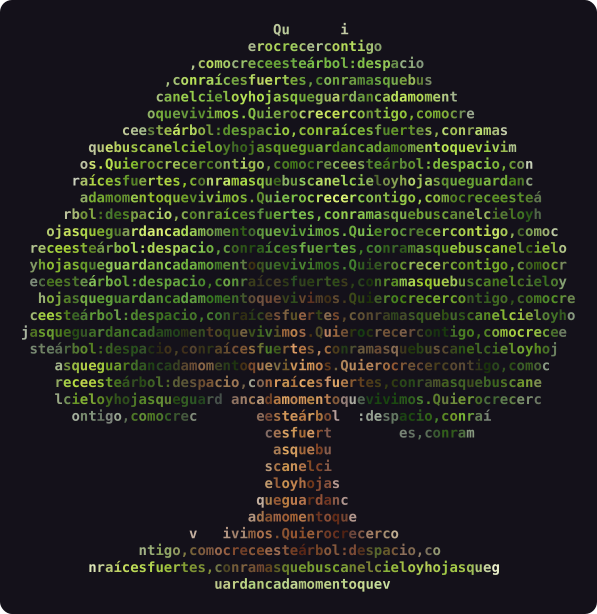
Un árbol escrito con un poema; la copa verde y el tronco café
python
dibujo = caligrama.dibujar("arbol.png", poema, ancho=70, espacios="sin", color=True)
print(dibujo)                                  # en color en la terminal
svg = caligrama.a_svg(dibujo, fondo="#111")    # el SVG respeta esos colores
bash
$ caligrama arbol.png -f poema.txt -w 70 --espacios sin --colores imagen
$ caligrama arbol.png -f poema.txt -w 70 --colores imagen --svg arbol.svg --fondo "#111"

Si quieres el texto sin códigos ANSI (para guardarlo en un .txt o pegarlo en un chat), no uses color=True: los códigos viajan dentro del str.

Un degradado

Un degradado horizontal con colores en hexadecimal (#rgb o #rrggbb). Se pasa como colores a reproducir y a_svg, o como --colores en el CLI:

$ caligrama logo.png -t "hola" --colores "#ff2d55,#b44dff"
caligrama.reproducir(caligrama.dibujar("logo.png", "hola"), veces=1, colores=["#ff2d55", "#b44dff"])

Si el dibujo ya trae colores de la imagen y además pasas un degradado, manda el degradado.

Los colores de terminal funcionan en Windows Terminal, iTerm2, GNOME Terminal, VS Code y casi cualquier terminal moderna. En el cmd.exe antiguo verás códigos raros.

09Animaciones#

Tres funciones que encajan: animar genera los fotogramas, reproducir los muestra en la terminal y a_svg los convierte en un SVG animado.

La palabra CALIGRAMA escrita con la palabra caligrama, animada

animar()

firma
caligrama.animar(
    imagen, texto,
    fotogramas=None,   # None = los justos para un bucle sin salto
    paso=1,            # letras que avanza el texto por fotograma (0 = quieto)
    latido=0.0,        # 0-1: la figura se encoge hasta este factor y vuelve
    # + las mismas opciones de dibujar(): ancho, aspecto, repetir, espacios,
    #   umbral, invertir, huecos, suavizar, desfase, color
) -> list[str]
  • paso: el texto corre por dentro de la figura. Con fotogramas=None, calcula cuántos hacen falta para que el texto dé la vuelta completa y el bucle no tenga salto.
  • latido: la figura late con un pulso doble y se encoge hasta latido·100 % entre latidos. Valores entre 0.15 y 0.3 se ven naturales. Sin paso, usa 24 fotogramas.
  • Se combinan: un corazón que late con el poema corriendo.
  • Todos los fotogramas tienen el mismo tamaño y están alineados, así que se pueden superponer. Máximo 240 fotogramas.
python
fotos = caligrama.animar("corazon.png", poema, paso=3, latido=0.22, ancho=56)
len(fotos)       # número de fotogramas
print(fotos[0])  # cada uno es un str como el de dibujar()

reproducir()

firma
caligrama.reproducir(
    fotogramas,        # str | list[str]
    intervalo=0.08,    # segundos por fotograma
    veces=None,        # None = hasta Ctrl+C
    colores=None,      # degradado opcional, p. ej. ["#ff5f8f", "#ff2d55"]
) -> None
python
caligrama.reproducir(fotos, intervalo=0.07, colores=["#ff5f8f", "#ff2d55"])
caligrama.reproducir(fotos, veces=3)   # tres vueltas y termina

Oculta el cursor mientras anima y lo restaura siempre, incluso si pulsas Ctrl+C (que lanza KeyboardInterrupt como de costumbre).

a_svg()

firma
caligrama.a_svg(
    fotogramas,                         # str (estático) | list[str] (animado)
    intervalo=0.08,
    colores=("#ff2d55", "#b44dff"),     # degradado (se ignora si los fotogramas traen color ANSI)
    fondo=None,                         # None = transparente
    tamano=14.0,                        # tamaño de letra en px
    aspecto=2.0,
) -> str
python
from pathlib import Path

svg = caligrama.a_svg(fotos, intervalo=0.07, fondo="#14111a")
Path("latido.svg").write_text(svg, encoding="utf-8")

# Un solo dibujo, estático:
Path("logo.svg").write_text(caligrama.a_svg(caligrama.dibujar("logo.png", "hola")), encoding="utf-8")

El SVG no necesita JavaScript: anima con CSS y funciona en <img>, en un README de GitHub y en la mayoría de visores. Con color=True cada letra lleva su propia etiqueta y el archivo pesa más; limita fotogramas si va a una web o a un README.

Desde la terminal

bash
$ caligrama animar corazon.png -f poema.txt --paso 3 --latido 0.22 -w 56      # Ctrl+C para salir
$ caligrama animar corazon.png -f poema.txt --paso 3 --veces 2
$ caligrama animar corazon.png -f poema.txt --paso 3 --svg latido.svg --fondo "#14111a"
$ caligrama animar titulo.png -t caligrama -w 160 --espacios sin --con-huecos \
      --colores "#ff2d55,#ff8a3d,#b44dff" --svg titulo.svg

Si la salida no es una terminal (por ejemplo, la rediriges a un archivo), animar da una sola vuelta.

10Referencia del CLI#

uso
caligrama IMAGEN [opciones]            # escribe el texto dentro de la silueta
caligrama analizar IMAGEN [opciones]   # examina la silueta para diseñar el texto
caligrama animar IMAGEN [opciones]     # anima en la terminal o en un SVG

El texto sale de -t, de -f o, si no pasas ninguno, de stdin (excepto en analizar). No se pueden usar -t y -f a la vez.

Opciones comunes

OpciónPythonDescripción
-t, --texto TEXTOtextoMensaje a escribir.
-f, --archivo RUTA—Leer el mensaje de un archivo (UTF-8).
-w, --ancho N|autoanchoColumnas de salida (60).
--aspecto FaspectoAlto/ancho de un carácter (2.0).
--umbral NumbralUmbral 0–255 figura/fondo (auto).
--sin-repetirrepetir=FalseNo repetir el texto.
--espacios MODOespaciosnormal, sin o todos.
--invertirinvertir=TrueEscribir en el fondo.
--con-huecoshuecos=TrueRespetar huecos interiores.
--suavizar NsuavizarUnir trazos finos (radio en px).
--desfase NdesfaseEmpezar N letras más adelante.
-h, --help—Ayuda completa.

Salida (dibujar y animar)

OpciónPythonDescripción
--colores C1,C2,...coloresDegradado en hexadecimal.
--colores imagencolor=TrueCada letra con el color de la imagen.
--svg RUTAa_svg()Guardar un SVG en vez de imprimir.
--fondo COLORfondoFondo del SVG (transparente si no se indica).
--tamano PXtamanoTamaño de letra del SVG (14).

Solo animar

OpciónPythonDescripción
--paso NpasoLetras que avanza el texto por fotograma (1; 0 = quieto).
--latido FlatidoLa figura late encogiéndose hasta F (0–1).
--fotogramas NfotogramasCuántos fotogramas (auto: bucle sin salto).
--intervalo SintervaloSegundos por fotograma (0.08).
--veces NvecesVueltas en la terminal (sin fin; 1 si no es una terminal).

Las opciones de salida no se aceptan en analizar, y las de animación solo en animar: el CLI avisa si mezclas. Código de salida: 0 si todo va bien, 2 ante cualquier error (el mensaje va a stderr).

11Recetas#

Tarjeta de cumpleaños con los mensajes de todos

python
import caligrama

mensajes = [
    "Feliz cumple, Ana!",
    "Que este año te traiga todo lo bueno.",
    "Te queremos mucho.",
]
texto = " · ".join(mensajes)
print(caligrama.dibujar("foto_ana.png", texto, ancho="auto", repetir=False))

Imagen descargada de internet

python
import urllib.request
import caligrama

datos = urllib.request.urlopen("https://ejemplo.com/logo.png").read()
print(caligrama.dibujar(datos, "hola desde la web", ancho=50))

Endpoint web (FastAPI) que devuelve un SVG

python
from fastapi import FastAPI, UploadFile, Form
from fastapi.responses import Response
import caligrama

app = FastAPI()

@app.post("/caligrama.svg")
async def generar(imagen: UploadFile, texto: str = Form(...), ancho: int = Form(60)):
    try:
        dibujo = caligrama.dibujar(await imagen.read(), texto, ancho=ancho)
    except ValueError as e:
        return Response(str(e), status_code=422)
    return Response(caligrama.a_svg(dibujo, fondo="#ffffff"), media_type="image/svg+xml")

Todo corre en local, sin llamadas a servicios externos. Limita ancho y el tamaño del upload si el endpoint es público.

Mostrarlo en una página HTML

python
import html, caligrama

dibujo = caligrama.dibujar("logo.png", "hola", ancho=40)
pagina = f'<pre style="font-family: monospace; line-height: 1">{html.escape(dibujo)}</pre>'

Escapa siempre el texto (html.escape) y usa una fuente monoespaciada. Si el line-height no es ~1, ajusta aspecto. Para algo más fiel, inserta el SVG de a_svg.

Jupyter

python
from IPython.display import SVG, display
import caligrama

display(SVG(caligrama.a_svg(caligrama.dibujar("gato.png", "miau", ancho=50))))

Banner de bienvenida para tu CLI

python
import sys, caligrama

if sys.stdout.isatty():
    caligrama.reproducir(caligrama.animar("logo.png", "mi-herramienta", paso=2, ancho=40, espacios="sin"), veces=1)

Muchas imágenes de una carpeta

bash
$ for img in fotos/*.png; do
    caligrama "$img" -f poema.txt -w auto --sin-repetir > "${img%.png}.txt"
  done

Mensaje para WhatsApp, Discord o Slack

Genera sin color, con un ancho de 30–40 (las pantallas de móvil son estrechas) y pégalo entre tres comillas invertidas ``` para que se vea en monoespaciada.

Ejemplos del repositorio

bash
$ git clone https://github.com/maosuarez/caligrama && cd caligrama
$ python examples/demo.py          # recorrido por la API
$ bash examples/demo.sh            # recorrido por la terminal
$ python examples/latido.py        # corazón que late (--svg latido.svg para guardarlo)
$ python examples/titulo.py        # el título animado del README
$ python examples/arbol.py         # el árbol a color

12Problemas frecuentes#

SíntomaPrueba con
La figura sale como un rectángulo o incluye el fondoEl fondo no es liso o toca el borde con otro color. Recorta la imagen, usa un PNG transparente o sube umbral.
Faltan partes claras de la figuraBaja umbral (p. ej. 20–30).
La figura sale rota, con trozos sueltossuavizar=2 a 5, o más ancho.
Un agujero que debería verse sale rellenohuecos=True / --con-huecos.
Se ve estirada o aplastadaAjusta aspecto a la proporción de tu fuente.
Muy poco detalleSube ancho. Con textos cortos, deja repetir=True.
Las palabras se cortan muchoEs inevitable en los bordes; prueba otro ancho o desfase, y usa analizar para ver los tramos.
El texto no cabe con "auto"Acorta el texto o usa un ancho fijo con repetir=False (lo que sobre se corta).
Aparecen códigos como \x1b[38;2;...Tu salida no entiende ANSI. Quita color=True / --colores, o usa una terminal moderna.
Letras torcidas al pegarloEl destino no usa fuente monoespaciada. Envuélvelo en ``` o <pre>.
El SVG pesa muchoMenos fotogramas, menos ancho, o sin color=True.

13Errores#

ExcepciónCuándo
OSErrorNo se puede leer el archivo (no existe, sin permisos).
ValueErrorLa imagen no se puede decodificar; el texto está vacío; no se encontró ninguna silueta en la imagen; opción inválida: ... (ancho 0, modo de espacios desconocido, color mal escrito...); el texto no cabe ni a 1000 columnas con "auto".
KeyboardInterruptCtrl+C durante reproducir.
python
try:
    dibujo = caligrama.dibujar(ruta, texto, ancho="auto")
except OSError as e:
    print("no pude abrir la imagen:", e)
except ValueError as e:
    print("revisa la imagen o las opciones:", e)

Los mensajes de error están en español.

14Tipos y versión#

El paquete incluye caligrama.pyi, así que tu editor y mypy/pyright conocen las firmas, los Literal de espacios y el TypedDict que devuelve analizar (caligrama.Analisis).

python
import caligrama
caligrama.__version__   # "0.3.2"

Enlaces: PyPI · GitHub · Reportar un problema · Historia del proyecto

Licencia MIT. Úsalo en lo que quieras, también en proyectos comerciales.

caligrama — documentación · Mauricio "Mao" Suárez Barrera
Documentation · caligrama

Write text in the shape of an image

caligrama takes an image and some text, finds the object's silhouette and writes the text inside it, letter by letter. It returns a plain str you can print, paste into a chat, save to a file or turn into an animated SVG.

A beating heart written with a poem running through it

This heart is generated by the library itself with caligrama.animar(..., latido=0.22, paso=3).

100% Rust

Decoding, segmentation and layout all happen in Rust. The Python package has no dependencies.

Offline

No network access. Your image and text never leave your machine.

API and CLI

import caligrama from Python or the caligrama command in your terminal. They do the same thing.

The API is in Spanish (a caligrama is a calligram). The functions are dibujar (draw), analizar (analyze), animar (animate), a_svg (to SVG) and reproducir (play), and argument names are Spanish too: ancho (width), espacios (spaces), huecos (holes), and so on. This page translates each one and shows examples you can copy.

01Installation#

$ pip install caligrama
  • Python 3.9 or newer. A single abi3 wheel covers every version.
  • Platforms: Linux (x86_64 and aarch64, glibc and musl), macOS (Intel and Apple Silicon) and Windows x64.
  • No dependencies: it doesn't pull in Pillow, numpy or anything else.
  • Image formats: PNG, JPEG, GIF, BMP and WebP.

Check the install:

$ python -c "import caligrama; print(caligrama.__version__)"
$ caligrama --help

With uv or pipx you can use just the command without touching your environment:

$ uvx caligrama photo.png -t "hello"
$ pipx install caligrama

02Quick start#

From Python

python
import caligrama

drawing = caligrama.dibujar("logo.png", "Hello world, this is caligrama", ancho=30)
print(drawing)

With the Python logo (white background, blue and yellow snakes) you get something like this:

         Hello world
        , this is cal
       igrama Hello wo
        rld, this is c
  aligrama Hello world, this
  is caligrama Hello  world,
 this is caligrama He llo wor
ld, this  is caligrama Hello
world,  this is caligrama Hel
 lo wor ld, this is caligram
  a Hel lo world, this is c
        aligrama Hell

The text repeats until the shape is full. To print it exactly once, use ancho="auto" and repetir=False (explained below).

From the terminal

bash
$ caligrama logo.png -w 30 -t "Hello world, this is caligrama"
$ caligrama logo.png -f poem.txt           # text from a file
$ cat poem.txt | caligrama logo.png        # or from stdin
$ caligrama logo.png -f poem.txt > card.txt  # save the result

03Input image and text#

The image

The imagen argument accepts three things:

python
from pathlib import Path
import caligrama

caligrama.dibujar("cat.png", text)                   # path as a str
caligrama.dibujar(Path("photos") / "cat.png", text)  # any os.PathLike
caligrama.dibujar(Path("cat.png").read_bytes(), text)  # raw file bytes

Bytes are for images that aren't on disk: a requests download, a Flask/FastAPI upload or a database blob. The format is detected from the content, not the extension.

What works best: a clear object on a flat background (white, black, any solid color or transparent). Logos, silhouettes, icons, illustrations and product photos work very well. For photos with busy backgrounds, crop the object first or use a PNG with transparency.

The text

  • Any Python str. It's walked by grapheme, so accents, ñ, ü and composed emoji (👩‍❤️‍👨, 🇨🇴) take one cell and are never split.
  • Newlines and tabs are treated as spaces (see space modes).
  • Empty text (or only whitespace) raises ValueError.

Emoji and CJK characters usually take two terminal columns, so the shape warps a little where they appear. For clean drawings, stick to Latin letters.

04dibujar()#

The main function (dibujar = to draw). Returns the calligram as a single str with \n line breaks, no trailing spaces and no blank rows at the top or bottom.

signature
caligrama.dibujar(
    imagen,                # image: str | os.PathLike | bytes
    texto,                 # text: str
    ancho=60,              # width: int | "auto"
    aspecto=2.0,           # aspect
    repetir=True,          # repeat
    espacios="normal",     # spaces: "normal" | "sin" | "todos"
    umbral=None,           # threshold: int 0-255 | None (automatic)
    invertir=False,        # invert
    huecos=False,          # holes
    suavizar=0,            # smooth
    desfase=0,             # offset
    color=False,
) -> str
ArgumentCLIDefaultWhat it does
ancho (width)-w, --ancho60Output columns. Wider = more detail and more letters. "auto" picks the smallest width where the whole text fits.
aspecto (aspect)--aspecto2.0Height/width of one character. About 2 in most terminals. If the drawing looks stretched vertically, raise it; if it looks squashed, lower it.
repetir (repeat)--sin-repetirTrueRepeat the text until the shape is full. With False it's written once and the rest of the shape stays empty.
espacios (spaces)--espacios"normal"How to handle whitespace in the text. See modes.
umbral (threshold)--umbralautoHow different from the background a pixel must be to count as shape (0–255).
invertir (invert)--invertirFalseWrite on the background and leave the shape empty.
huecos (holes)--con-huecosFalseKeep interior holes that match the background (a logo's eye, a donut's center).
suavizar (smooth)--suavizar0Join thin or dotted strokes before sampling (radius in source-image pixels).
desfase (offset)--desfase0Start writing N letters into the text.
color--colores imagenFalseEach letter takes the image's color at its position (24-bit ANSI inside the str).

Choosing the width

  • 30–50: short messages, chats, commits, a profile bio.
  • 60–80: poems, cards, most terminals.
  • 100–200: detailed shapes or lettering (the animated README title uses 160). They need long text or repetir=True.

If your text must appear in full and exactly once, let caligrama compute the width:

python
poem = open("poem.txt", encoding="utf-8").read()
print(caligrama.dibujar("logo.png", poem, ancho="auto", repetir=False))

"auto" finds the smallest width whose shape has at least as many cells as the text has letters (up to 1000 columns). With repetir=True the leftover cells are filled with the start of the text again; with repetir=False those few cells stay blank.

Saving the result

python
from pathlib import Path

drawing = caligrama.dibujar("cat.png", "meow " * 50, ancho=50)
Path("cat.txt").write_text(drawing + "\n", encoding="utf-8")

To display it outside a terminal, always use a monospaced font: a ``` block in Markdown, WhatsApp or Discord, or a <pre> in HTML.

05Space modes#

Spaces take up cells too. The espacios argument decides what to do with them:

ModeWhat it doesUse it for
"normal"Collapses runs of spaces, newlines and tabs into one, and separates each repetition of the text with a space.Almost always. It reads best.
"sin" (without)Removes every space and glues repetitions together.Solid-looking shapes; single words like "caligrama"; color images.
"todos" (all)Keeps every space as-is (a newline or tab = one space). No separator between repetitions; trailing newlines are dropped.Pre-formatted text, or when indentation matters.
python
text = "love  you\nso much"
caligrama.dibujar("heart.png", text, espacios="normal")  # "love you so much love you so much ..."
caligrama.dibujar("heart.png", text, espacios="sin")     # "loveyousomuchloveyousomuch..."
caligrama.dibujar("heart.png", text, espacios="todos")   # "love  you so muchlove  you so much..."

analizar() and ancho="auto" count letters with the same mode, so their numbers match the drawing.

06Controlling the silhouette#

Knowing how caligrama decides what counts as shape helps you pick the right options:

  1. If the image has transparency, the shape is whatever isn't transparent. Nothing else needed.
  2. Otherwise, it takes the median color of the border pixels as the background and marks as shape whatever is far from that color. That's why any flat background works, not just white, and why light yellow on white doesn't vanish.
  3. The threshold is computed automatically and adapts to JPEG noise.
  4. If suavizar is set, it closes the strokes.
  5. It fills holes: only what's connected to the border is background. A penguin's white belly on a white background is still penguin.
  6. It reduces the mask to a grid: a cell is shape if at least half its pixels are.

huecos: keep interior holes

By default holes are filled. If the hole is part of the drawing (the Python snakes' eyes, the letter O, a donut), turn it on:

caligrama.dibujar("logo.png", text, huecos=True)
$ caligrama logo.png -t "..." --con-huecos

suavizar: thin, dotted or lettered strokes

If the shape comes out "broken" or in scattered pieces (thin-line logos, pencil sketches, an image that is already ASCII art), suavizar=N joins strokes that are less than ~N pixels apart. Start with 2–4 and go up if needed.

Heads up: closing an outline makes its inside part of the shape. If you want the ring rather than the disc, combine it with huecos=True.

caligrama.dibujar("signature.png", text, suavizar=3)
caligrama.dibujar("ring.png", text, suavizar=3, huecos=True)

umbral: when automatic isn't right

The threshold is the color distance (0–255) above which a pixel counts as shape. Lower it (e.g. 20) if light or low-contrast parts go missing; raise it (e.g. 80) if noise, shadows or background creep in.

caligrama.dibujar("photo.jpg", text, umbral=40)

To find a good value quickly, try a few with analizar and look at the template (next section).

invertir: write around it

With invertir=True the text fills the background and the shape becomes a blank cut-out. Handy for dark logos or a stencil look.

aspecto: font proportions

A terminal character is almost twice as tall as it is wide; aspecto=2.0 compensates so a circle comes out round. If you'll show the result with another font or line height (a web page with a tall line-height, an SVG), adjust it. a_svg takes the same parameter.

07Designing the text: analizar()#

Before writing a poem for a shape, it helps to know how much room there is. analizar() (analyze) inspects the silhouette without writing anything.

signature
caligrama.analizar(
    imagen, texto=None, ancho=60, aspecto=2.0, espacios="normal",
    umbral=None, invertir=False, huecos=False, suavizar=0,
) -> dict
python
info = caligrama.analizar("logo.png", "Hello world", ancho=30)
info["letras"]            # 252 — cells available at this width
info["letras_por_fila"]   # [11, 13, 15, 14, 26, 26, 28, 28, 28, 26, 24, 13]
info["ancho_recomendado"] # smallest width where "Hello world" fits
print(info["plantilla"])  # the shape drawn with '#'
KeyTypeMeaning
ancho, filasintWidth and rows of the drawing (resolved if you passed "auto").
letras (letters)intShape cells = letters that fit (spaces count).
palabras_aproxintApproximate number of words that fit.
letras_por_filalist[int]Letters that fit in each row, top to bottom.
tramos, tramo_min, tramo_maxintContinuous runs of shape and their lengths. A gap between runs on the same row may split a word.
plantilla (template)strThe shape with #. Matches cell for cell what dibujar() draws with the same options.
letras_por_anchodict[int, int]Capacity at other widths (30, 40, 50, 60, 80, 100, 120).
texto_letrasintOnly with texto: its letter count, using the same espacios mode.
ancho_recomendadoint | NoneOnly with texto: the width "auto" would pick. None if it doesn't fit even at 1000 columns.
sobran (left over)intOnly with texto: letras - texto_letras. Negative = not enough cells.

From the terminal

bash
$ caligrama analizar logo.png -w 40 -t "Podrá nublarse el sol eternamente"
$ caligrama analizar logo.png -f poem.txt           # with your poem
$ caligrama analizar logo.png                       # no text: capacity only

The report is printed in Spanish:

Silueta a 40 columnas × 16 filas
Caben 452 letras (los espacios cuentan) ≈ 75 palabras
Tramos: 26 (de 5 a 28 letras); cada hueco entre tramos puede partir una palabra

Plantilla (letras por fila a la derecha):
               #############               │  13
             #################             │  17
            ###################            │  19
     ########################## ######     │  32
  ...

Otros anchos:
  ancho  filas  letras  ≈palabras
     30     12     252        42
     40     16     452        75
     60     23     955       159

Tu texto: 33 letras. Cabe completo desde 11 columnas (-w auto). A 40 columnas sobran 419 letras.

Roughly: "silhouette at 40 columns × 16 rows · 452 letters fit ≈ 75 words · 26 runs · other widths · your text has 33 letters, fits in full from 11 columns, at 40 columns 419 letters are left over". caligrama analizar doesn't read stdin: the text is optional and passed with -t or -f.

Suggested workflow for a custom poem

  1. Pick the image and try widths with caligrama analizar img.png -w N until the template looks right.
  2. Write the text aiming for roughly letras letters. Use letras_por_fila if you want a line to land on a specific row.
  3. Pass the text to analizar and check sobran. Tweak words until it's close to 0, or use ancho="auto".
  4. Draw with repetir=False so the text appears exactly once.

08Color#

There are two ways to add color, and both work in the terminal and in SVG:

The image's own colors

With color=True each letter gets the average color of the shape pixels in its cell (the background doesn't wash out the edges). The color travels inside the str as 24-bit ANSI codes.

A tree written with a poem; green canopy and brown trunk
python
drawing = caligrama.dibujar("tree.png", poem, ancho=70, espacios="sin", color=True)
print(drawing)                                  # colored in the terminal
svg = caligrama.a_svg(drawing, fondo="#111")    # the SVG keeps those colors
bash
$ caligrama tree.png -f poem.txt -w 70 --espacios sin --colores imagen
$ caligrama tree.png -f poem.txt -w 70 --colores imagen --svg tree.svg --fondo "#111"

If you want the text without ANSI codes (to save as .txt or paste in a chat), don't use color=True: the codes are part of the str.

A gradient

A horizontal gradient with hex colors (#rgb or #rrggbb). Pass it as colores to reproducir and a_svg, or as --colores on the CLI:

$ caligrama logo.png -t "hello" --colores "#ff2d55,#b44dff"
caligrama.reproducir(caligrama.dibujar("logo.png", "hello"), veces=1, colores=["#ff2d55", "#b44dff"])

If the drawing already carries image colors and you also pass a gradient, the gradient wins.

Terminal colors work in Windows Terminal, iTerm2, GNOME Terminal, VS Code and nearly every modern terminal. Legacy cmd.exe will show garbage codes.

09Animations#

Three functions that fit together: animar builds the frames, reproducir plays them in the terminal and a_svg turns them into an animated SVG.

The word CALIGRAMA written with the word caligrama, animated

animar()

signature
caligrama.animar(
    imagen, texto,
    fotogramas=None,   # frames: None = just enough for a seamless loop
    paso=1,            # step: letters the text advances per frame (0 = still)
    latido=0.0,        # heartbeat 0-1: the shape shrinks to this factor and back
    # + the same options as dibujar(): ancho, aspecto, repetir, espacios,
    #   umbral, invertir, huecos, suavizar, desfase, color
) -> list[str]
  • paso (step): the text flows through the shape. With fotogramas=None it computes how many frames the text needs to come full circle, so the loop has no jump.
  • latido (heartbeat): the shape beats with a double pulse and shrinks to latido·100% between beats. Values between 0.15 and 0.3 look natural. Without paso it uses 24 frames.
  • They combine: a beating heart with the poem running through it.
  • All frames have the same size and are aligned, so they overlay cleanly. Maximum 240 frames.
python
frames = caligrama.animar("heart.png", poem, paso=3, latido=0.22, ancho=56)
len(frames)       # number of frames
print(frames[0])  # each one is a str, like dibujar()'s output

reproducir()

signature
caligrama.reproducir(
    fotogramas,        # frames: str | list[str]
    intervalo=0.08,    # seconds per frame
    veces=None,        # times: None = until Ctrl+C
    colores=None,      # optional gradient, e.g. ["#ff5f8f", "#ff2d55"]
) -> None
python
caligrama.reproducir(frames, intervalo=0.07, colores=["#ff5f8f", "#ff2d55"])
caligrama.reproducir(frames, veces=3)   # three loops, then return

It hides the cursor while playing and always restores it, even on Ctrl+C (which raises KeyboardInterrupt as usual).

a_svg()

signature
caligrama.a_svg(
    fotogramas,                         # str (static) | list[str] (animated)
    intervalo=0.08,
    colores=("#ff2d55", "#b44dff"),     # gradient (ignored if frames carry ANSI color)
    fondo=None,                         # background: None = transparent
    tamano=14.0,                        # font size in px
    aspecto=2.0,
) -> str
python
from pathlib import Path

svg = caligrama.a_svg(frames, intervalo=0.07, fondo="#14111a")
Path("heartbeat.svg").write_text(svg, encoding="utf-8")

# A single, static drawing:
Path("logo.svg").write_text(caligrama.a_svg(caligrama.dibujar("logo.png", "hello")), encoding="utf-8")

The SVG needs no JavaScript: it animates with CSS and works in an <img>, a GitHub README and most viewers. With color=True each letter gets its own tag and the file grows; limit fotogramas for web pages and READMEs.

From the terminal

bash
$ caligrama animar heart.png -f poem.txt --paso 3 --latido 0.22 -w 56      # Ctrl+C to quit
$ caligrama animar heart.png -f poem.txt --paso 3 --veces 2
$ caligrama animar heart.png -f poem.txt --paso 3 --svg heartbeat.svg --fondo "#14111a"
$ caligrama animar title.png -t caligrama -w 160 --espacios sin --con-huecos \
      --colores "#ff2d55,#ff8a3d,#b44dff" --svg title.svg

If output isn't a terminal (for example, redirected to a file), animar plays a single loop.

10CLI reference#

usage
caligrama IMAGE [options]            # write the text inside the silhouette
caligrama analizar IMAGE [options]   # inspect the silhouette to design the text
caligrama animar IMAGE [options]     # animate in the terminal or to an SVG

The text comes from -t, -f or, if neither is given, stdin (except for analizar). -t and -f can't be combined. Help and error messages are in Spanish.

Common options

OptionPythonDescription
-t, --texto TEXTtextoMessage to write.
-f, --archivo PATH—Read the message from a file (UTF-8).
-w, --ancho N|autoanchoOutput columns (60).
--aspecto FaspectoCharacter height/width (2.0).
--umbral NumbralShape/background threshold 0–255 (auto).
--sin-repetirrepetir=FalseDon't repeat the text.
--espacios MODEespaciosnormal, sin or todos.
--invertirinvertir=TrueWrite on the background.
--con-huecoshuecos=TrueKeep interior holes.
--suavizar NsuavizarJoin thin strokes (radius in px).
--desfase NdesfaseStart N letters in.
-h, --help—Full help.

Output (draw and animate)

OptionPythonDescription
--colores C1,C2,...coloresHex gradient.
--colores imagencolor=TrueEach letter in the image's color.
--svg PATHa_svg()Save an SVG instead of printing.
--fondo COLORfondoSVG background (transparent if omitted).
--tamano PXtamanoSVG font size (14).

Animate only

OptionPythonDescription
--paso NpasoLetters the text advances per frame (1; 0 = still).
--latido FlatidoShape beats, shrinking to F (0–1).
--fotogramas NfotogramasFrame count (auto: seamless loop).
--intervalo SintervaloSeconds per frame (0.08).
--veces NvecesLoops in the terminal (endless; 1 if not a terminal).

Output options aren't accepted by analizar, and animation options only work with animar: the CLI tells you if you mix them. Exit code: 0 on success, 2 on any error (message on stderr).

11Recipes#

Birthday card with everyone's messages

python
import caligrama

messages = [
    "Happy birthday, Ana!",
    "Wishing you the best year yet.",
    "We love you.",
]
text = " · ".join(messages)
print(caligrama.dibujar("ana.png", text, ancho="auto", repetir=False))

An image downloaded from the web

python
import urllib.request
import caligrama

data = urllib.request.urlopen("https://example.com/logo.png").read()
print(caligrama.dibujar(data, "hello from the web", ancho=50))

Web endpoint (FastAPI) that returns an SVG

python
from fastapi import FastAPI, UploadFile, Form
from fastapi.responses import Response
import caligrama

app = FastAPI()

@app.post("/caligrama.svg")
async def generate(image: UploadFile, text: str = Form(...), width: int = Form(60)):
    try:
        drawing = caligrama.dibujar(await image.read(), text, ancho=width)
    except ValueError as e:
        return Response(str(e), status_code=422)
    return Response(caligrama.a_svg(drawing, fondo="#ffffff"), media_type="image/svg+xml")

Everything runs locally with no calls to external services. Cap the width and upload size if the endpoint is public.

Showing it on an HTML page

python
import html, caligrama

drawing = caligrama.dibujar("logo.png", "hello", ancho=40)
page = f'<pre style="font-family: monospace; line-height: 1">{html.escape(drawing)}</pre>'

Always escape the text (html.escape) and use a monospaced font. If line-height isn't ~1, adjust aspecto. For a more faithful result, embed the SVG from a_svg.

Jupyter

python
from IPython.display import SVG, display
import caligrama

display(SVG(caligrama.a_svg(caligrama.dibujar("cat.png", "meow", ancho=50))))

Welcome banner for your CLI

python
import sys, caligrama

if sys.stdout.isatty():
    caligrama.reproducir(caligrama.animar("logo.png", "my-tool", paso=2, ancho=40, espacios="sin"), veces=1)

A whole folder of images

bash
$ for img in photos/*.png; do
    caligrama "$img" -f poem.txt -w auto --sin-repetir > "${img%.png}.txt"
  done

A message for WhatsApp, Discord or Slack

Generate it without color, 30–40 columns wide (phone screens are narrow), and paste it between triple backticks ``` so it renders in a monospaced font.

Examples in the repository

bash
$ git clone https://github.com/maosuarez/caligrama && cd caligrama
$ python examples/demo.py          # API tour
$ bash examples/demo.sh            # CLI tour
$ python examples/latido.py        # beating heart (--svg latido.svg to save it)
$ python examples/titulo.py        # the animated README title
$ python examples/arbol.py         # the colored tree

12Troubleshooting#

SymptomTry
The shape is a rectangle or includes the backgroundThe background isn't flat or touches the border with another color. Crop the image, use a transparent PNG or raise umbral.
Light parts of the shape are missingLower umbral (e.g. 20–30).
The shape is broken into loose piecessuavizar=2 to 5, or a larger ancho.
A hole that should show is filled inhuecos=True / --con-huecos.
It looks stretched or squashedSet aspecto to your font's proportions.
Too little detailRaise ancho. With short text, keep repetir=True.
Words get split a lotUnavoidable at edges; try another ancho or desfase, and use analizar to see the runs.
The text doesn't fit with "auto"Shorten it, or use a fixed width with repetir=False (the overflow is cut).
Codes like \x1b[38;2;... show upYour output doesn't understand ANSI. Drop color=True / --colores, or use a modern terminal.
Letters misalign when pastedThe destination isn't monospaced. Wrap it in ``` or <pre>.
The SVG is hugeFewer fotogramas, smaller ancho, or no color=True.

13Errors#

ExceptionWhen
OSErrorThe file can't be read (missing, no permission).
ValueErrorThe image can't be decoded; el texto está vacío (empty text); no se encontró ninguna silueta en la imagen (no silhouette found); opción inválida: ... (invalid option: width 0, unknown space mode, malformed color...); the text doesn't fit even at 1000 columns with "auto".
KeyboardInterruptCtrl+C during reproducir.
python
try:
    drawing = caligrama.dibujar(path, text, ancho="auto")
except OSError as e:
    print("couldn't open the image:", e)
except ValueError as e:
    print("check the image or the options:", e)

Error messages are in Spanish.

14Types and version#

The package ships caligrama.pyi, so your editor and mypy/pyright know the signatures, the Literal values of espacios and the TypedDict returned by analizar (caligrama.Analisis).

python
import caligrama
caligrama.__version__   # "0.3.2"

Links: PyPI · GitHub · Report an issue · Project story

MIT license. Use it for anything, including commercial projects.